 Des mots et des concepts Des mots et des concepts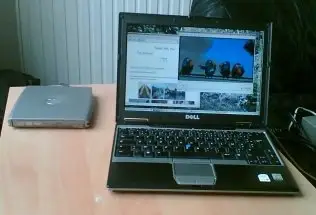
The computer works fine with Ubuntu. Except for three details :
The software "sensors" doesn't work. But I use a gnome applet to watch the CPU temperature.
The winmodem works but without sound when connecting. Warning : if you install modules for winmodem, Hibernate will be out of work.
The external display seems to work but the resolution still needs to configure it.
Intel Core Solo U1300, 1.06GHz
WiFi with Intel PRO/Wireless 3945 802.11a/g Mini Card
Standard Touchpad
My optical device is the external "D/Bay DVD burner", included by default
Screen WXGA 1280x800
Autonomy is 3 hours with my battery 6 cells. Weight is 1.475 Kg without the charger.

I started with the Alternate install CD of Ubuntu 7.10 ("Gutsy Gibbon"), because I like the alternate text mode.
Fyi, this page helps me to start. But the hardware configuration is not the same, and my WiFi works already fine.
 $ sudo su -
# passwd $ sudo apt-get install sensors-appletThen right-click on a gnome panel, "Add to panel", drag and drop "Hardware Sensors Monitor" on the panel. Configure the applet preferences and set the "Sensor value multiplier" to 0.750.
The standard gnome interface doesn't allow you to configure the touchpad speed, only the usb mouse and the blue little thing that I don't know the name.
$ sudo gedit /etc/X11/xorg.confSearch the section "InputDevice" with identifier "Synaptics Touchpad", and add:
	Option		"MinSpeed"		"0.8"
	Option		"MaxSpeed"		"0.8"
Restart X with Ctrl+Alt+Backspace.
In order to use the battery during more time:
$ gconf-editor/apps/gnome-power-manager/cpufreq/policy_battery: set to "powersave".
/apps/gnome-power-manager/thresholds/percentage_action: set to 1.
/apps/gnome-power-manager/thresholds/percentage_critical: set to 2.
/apps/gnome-power-manager/general/use_time_for_policy: uncheck.
If your computer runs slowly, it's probably because of the tracker daemon. Select "System" -> "Preferences" -> "Indexing preferences" then disable it. You can deactivate the daemon too : Select "System" -> "Preferences" -> "Sessions" and deselect "Tracker". It will be deactivated on the next reboot.
Click on "Applications" menu, then "Add/Remove" and make showed "All available applications". In order to read all musics and video, search "extras" and select "Ubuntu restricted extras". In order to install a firewall, search and select "firestarter". Then click on "OK" for installing all the selected package(s).
If the Microsoft fonts don't appear in OpenOffice, then force the cache to refresh itself with command:
$ sudo fc-cache -f -vImportant :
This procedure worked when I installed Ubuntu 6.06 (Dapper Drake). I didn't test it with recent versions of Ubuntu. And I don't know how the winmodem driver works with the newly included network manager "nm-applet".
Once the Conexant linux driver installed, Hibernate won't work. You will have to uninstall the driver for using Hibernate again.
If you are not sure to have the same winmodem that I have, take the information from scanModem. Download scanModem, then execute it:
chmod +x scanModem
sudo ./scanModemNow, you can follow the instructions in ModemData.txt, that has been generated by scanModem. Download the file "hsfXXX.tar.gz" here, then:
 $ tar zxf hsfXXX.tar.gz
 $ cd hsfmodem-XXX
 $ sudo make install
 $ sudo hsfconfig
Here you should save the directory "hsfmodem-XXX". Later, if you don't use the winmodem anymore, just execute : "sudo make uninstall" in this directory in order to make Hibernate work again.
(here I rebooted but I'm not sure if it's necessary), then:
$ sudo wvdialconf /etc/wvdial.confThe result was:
(...)
Found a modem on /dev/ttySHSF0, using link /dev/modem in config.
Modem configuration written to /etc/wvdial.conf.
ttySHSF0<Info>: Speed 460800; init "ATQ0 V1 E1 S0=0 &C1 &D2 +FCLASS=0" $ gedit wvtest.confAnd paste this content, with your own ISP informations:
[Dialer Defaults]
Modem = /dev/modem
Baud = 460800
Init1 = ATZ
Init2 = ATQ0 V1 E1 S0=0 &C1 &D2 +FCLASS=0
ISDN = 0
Modem Type = Analog Modem
Phone = <isp-telephon-number>
Username = <your-login>
Password = <your-password>
Execute wvdial:
$ sudo wvdial --config wvtest.confWhen the modem is connected (but without sound in my case!), press Ctrl+C for breaking test.
You can now use it from the standard gnome interface, with the device /dev/modem.